

A student's program activities can be entered or edited on the Activities page located on the Student Menu.
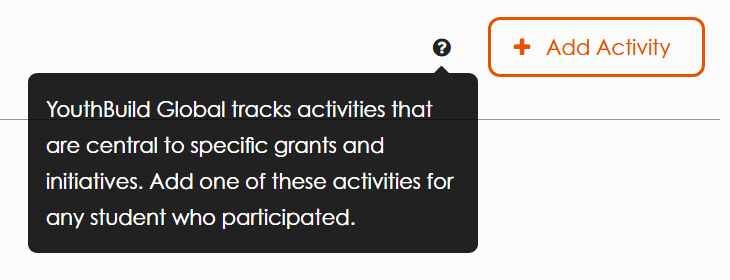
YouthBuild USA tracks activities that are central to specific grants and initiatives. Add one of these activities for any student who participated.
To Add an Activity
Click Add Activity and choose an activity type from the drop down menu and enter the date the activity began. If it is a recurring activity, you do not need to enter the activity each time it happens, just the start of the student's participation.
Activities available are:
Barista Training
College Bridge Program
Internship
Mental Toughness II (MT2) (Note: Different than Mental Toughness / Orientation, see glossary)
Mentoring
PGIM Activities
PGIM Coaching
Policy Committee Member
Note: If a student participated in Mentoring, you will need to enter what kind of mentoring the student received and whether or not the mentor was a Youth Opportunity AmeriCorps Mentor.
To Edit an Activity
Hover your mouse over an activity in the list and click Edit, located on the right under the date. Then edit the activity type, date or other information. Click Save when you are done.

To Remove an Activity
Hover your mouse over an activity in the list and click Edit, located on the right under the date. Then click Remove Activity if the activity was not accomplished. You will be asked to Confirm Delete.
Article Keywords/Topics: How Do I Add an Activitiy; How To Add an Activity; How To Add Activities; Policy Council; Starbucks