

To add or edit a student's certificate information navigate to the Certificates page in the student menu.
To Add a Certificate
When a student is awarded a new certificate, you can add it to the list by clicking Add Certificate.

After clicking Add Certificate, you will be prompted to fill in the certificate name and date awarded. Click Save when you are done.
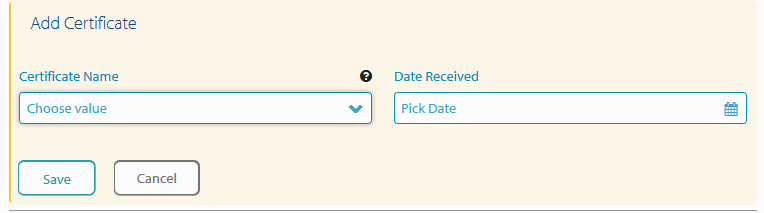
The available options for Certificate Name are:
National Center for Construction Education and Research (NCCER)
Multi Craft Core Curriculum (MCCC)
Building Performance Institute (BPI)
HBI PACT
Certified Nursing Assistant (CNA)
Personal Care Assistant (PCA)
Home Health Aide (HHA)
Customer Service Excellence Certificate (CSET)
CPR/First Aid
OSHA 10
OSHA 30
Driver's License
Comercial Driver's License (CDL)
HAZMAT
Other
If you select "Other" from the certificate name drop down, you will be prompted to name the certificate, select what type of certificate it is (Construction, Customer Service, Healthcare, Hospitality, Foundational, Other) and also select whether or not it is industry recognized.
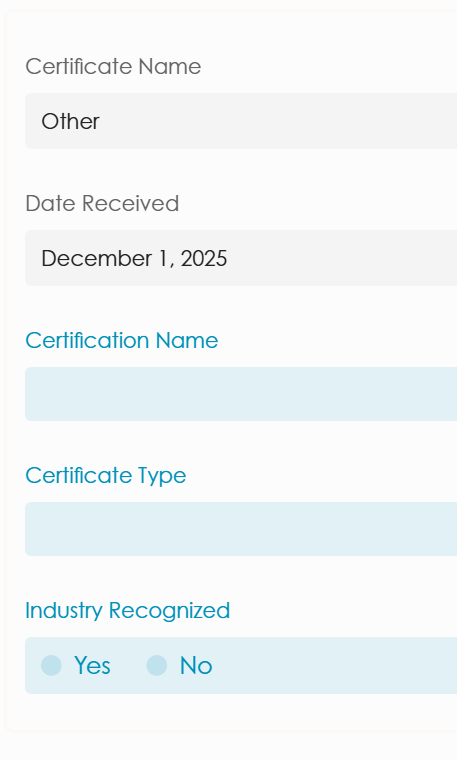
Note: You only need to enter the type and industry recognized status for "Other" certificates. This is because the system automatically assigns the appropriate information for the rest of the certificates listed.
To Edit a Certificate
On this page you will find a list of all certificates that a student has been awarded, the type of certificate it is, as well as the date that each was awarded. Clicking on the certificate name will show you details of the certification. From the detail view you can click into any of the information previously entered and make changes. Click Save when you are done.
To Remove a Certificate
Click on the certificate you would like to remove from the list on the Certificates page. Then click Remove Certificate located to the bottom right of the page. You will then need to click Confirm Delete.