

Program staff who have administrative permissions in DYB (Admins) can add new users for their program and also view, edit and remove existing users on the Users page.
(*Note: If your program does not yet have any users, contact DYB Support. See also Quick Start Guide.)
Please create DYB user accounts with unique email addresses rather than having staff share accounts. This helps to keep track of who has done what and makes troubleshooting much easier. Also, because DYB stores personal information about your students, be sure to keep your user list current and delete anyone who no longer works with your program.
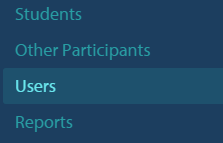
From the Program Menu, click Users to access the Program Users page.
To Add a New User
Click Add User on the right side of the page.

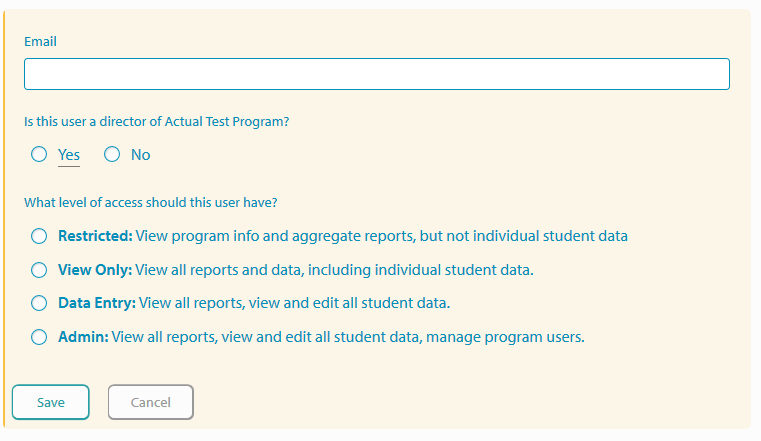
Next, enter the new user's email address, choose whether or not the user is the director of your YouthBuild Program, and select which level of access they should have. Click Save when you are done. One note about permissions: The Admin role is the only user type who can add and remove users. Try to keep your number of Admin users to just one or two so you can carefully manage your user list.
If the email you are adding is brand new to the system, the user will be sent a welcome email with a link to complete creating their account. There the user can enter their name and create a password.
To Edit a User
Click on the name of the user you would like to edit to update their information. Click Save when you are done.
Note: Once created, editing a user's name and email address can be done only by the user themselves. See Changing Account Settings.
To Remove a User
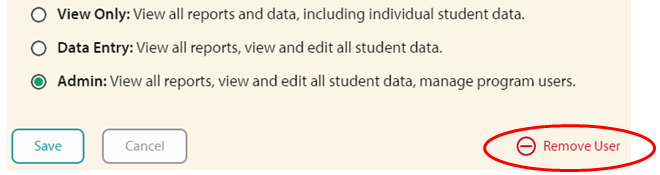
In the list of users, click on the name of the user you would like to remove and click Remove User. You will be asked to Confirm Delete.
Note: Admins cannot change other users' passwords, they can only refer them to the Forgot Password function where they can reset their password. See the Forgot Password article for more information.
Article Keywords/Topics: How to Add a User; Register Other Staff, Create Account, New Username, How do I set up a new user's login?, log in